Promethean
OS MenuBar

Summary
Promethean’s newest generation of their flagship, Android based Interactive Flat Panel Display, the ActivPanel 9 (AP9) is used in classrooms across the world. Up to 86”, like your tablet, but on the wall and massive. The Android Menu of the previous version of the OS needed an interaction overhaul to be more familiar and address feedback from those who use it most: Educators and Students.
Role
Product UX Manager (Coach 50%)
UX / UI / Visual Designer (Player 50%)
Highlights
Patent Pending on a new interactive feature
A Simplicity Problem
The previous OS (AP7) version’s menu was modified from the Android 8 menu system. Dubbed the "Unified Menu," it was designed to dictate simplicity with Android features combined with steering usage of Promethean's own applications.
But, the apps were hard coded and static. It was difficult to distinguish between what was currently being used and what was simply... there.
The old menu struggled from a lack of familiarity. People found it cumbersome, often frustrating, and annoying.

AP7's "Unified Menu"
The Goal
I wanted to update the menu to look and act like modern, familiar operating systems teachers know and use everyday.
The majority of educators in K-12 use Windows and Chromebooks. Most use iphones. Some use Macs.
The OS UI's share similar features: a quick way to open applications; a group of currently running and/or "pinned" app icons; statuses for internet, time, and more (for Mac and iOS those are in the status bar at the top of the screen).
Windows' Taskbar


iOS' Dock
Mac's Dock

ChromeOS' Taskbar
A BIG Challenge
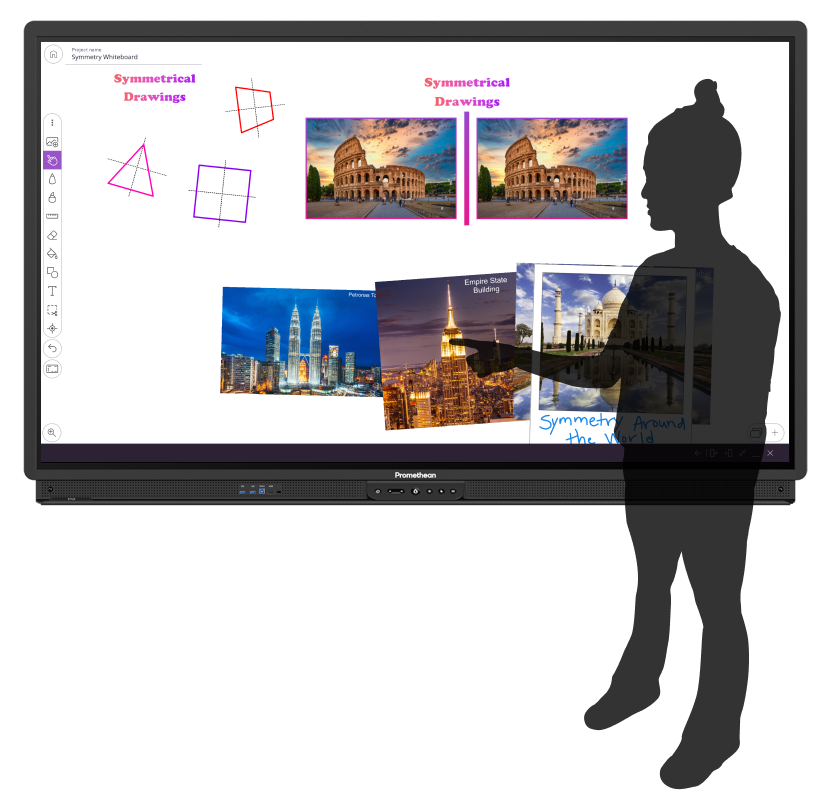
Interactive Flat Panel Displays should be useable when you’re inches away, indeed. They should also be viewable (and controllable) from the back of the room.
These devices are BIG. 65 to 86 inches kind of big.
The physical size means standing in front while giving a lecture blocks the view of the screen. Standing to the side of the panel is ideal. How can someone interact with the device with minimal to no movement, effort, and interruption to the audience?
Prototyping A New Solution
You’ll still need to operate the operating system. Reaching application icons in the center of the Menu Bar without blocking views is near impossible.
So how should I solve this?
What if, instead of going to the UI, the UI came to you?
Thus was born the “Come to Me” feature in the Menu Bar.
Invoke the menu from the side of the screen, then tap in the negative space in the Menu Bar, and the UI slides to you. On the left, tap the left and the icons slide to the left side of the screen. On the right, tap right. Center, to the center.
This interaction is patent pending.
Getting feedback for the "Come to Me" feature with teacher
proxies - members of the Promethean training team
A Dynamic MenuBar
Modeling the new MenuBar after the popular OS controls, I added common and useful features. You can now “pin” applications to keep them in the row—initially only three app icons could be pinned. Long pressing an app icon opens a fly-out menu to close, minimize, pin, and open at start up. It also includes an internet connectivity status icon so teachers can be aware of any dropped connections, common in schools during peak Wifi usage hours.
Why only three pin-able icons?
Feedback from interviewing and surveying teachers showed the mode number of applications teachers wanted to pin was three. When designing the MenuBar holistically I had to balance the total number of icons fitting the menu, the number of desired pinned apps, and the space allowing for the "Come to Me" sliding feature.


The new Promethean MenuBar
What Was Learned
The "Come to Me" testing video above shows the sliding feature isn't necessarily intuitive. Something I was, unfortunately, not able to fully address. The Promethean Professional Development Services teams did, however, add the feature to their curriculum to show teach teachers the functionality. It remains "discoverable" for those who do not receive the same training.
I would've liked to add some tips and hints for on-boarding the features of the menu, "Come to Me" in particular.
Post Launch Changes
At first launch only three application icons could be pinned to the MenuBar. That number was, rightfully, questioned. But I wanted to find out how many app icons teachers would actually pin. In order to do so, I had to wait for a larger pool of usage data and feedback to come in. When it did, I worked with one of my designers to change the way the the menu worked.
I guided, reviewed, and mentored while she did the heavy lifting. We added a division between pinned and unpinned applications, the ability to drag from one side to the other, as well as increased the number of pinned icons to six.
